What is Mirage and why should I get it?
Mirage is a data visualization tool. It has many nice features, but the most powerful is its multiple simultaneous views of your data. As a concrete example, let's say you've plotted a histogram of some quantity using your favorite tool, and you notice a few outliers. What are they? Are they spatially clustered? Are they also outliers with respect to some other quantity? To find out, you'll have to filter them out of your catalog and make another plot using that subset of the data. Mirage lets you work much more efficiently. You can select a chunk of the histogram and have that selection immediately broadcast to a scatterplot. It lets you do science without worrying about the plumbing.
OK, how do I get Mirage?
Note: Mirage is written in Java, so it runs on almost any operating system. The conventions used here are Unix-style, but Windows users will easily be able to interpret.
- First, go to the Mirage home page
and download the latest version by following the link to "Bell Labs
software distribution web site", and following the steps therein.
Create a directory to keep it in, say "/usr/local/mirage" (it could
also be under your home directory) and save the binary to a file in
that directory, say "mirage0.2.tar.gz". Then unpack it by going to
that directory and running "tar xzvf mirage0.2.tar.gz" (note: version
0.2 will be available by April 14, 2003).
- Make sure you have java version 1.3 or later: run "java
-version". If not, consult your local guru to find out how to
upgrade.
- To run it, use the command "java -jar
/usr/local/mirage/Mirage0.2.jar" (or whatever the path is on your system).
Power users may wish to add an option like "-Xmx750000000" to indicate
that Mirage can use up to 750 MB of memory. When working with large
datasets, more memory speeds things up. In any case,
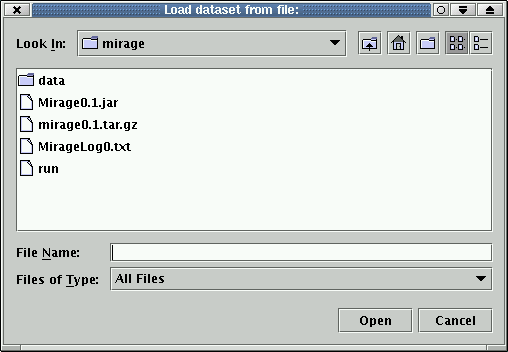
you will see the popup pictured below.
How do I use Mirage?
Here's an example based on the DLS data.
Getting DLS data
- Click "Cancel" on the "Load
dataset" popup. Don't worry, this does not exit the program. It
simply lets us get to a more sophisticated data loading option.
- You should now see a blank canvas with three menu options at upper
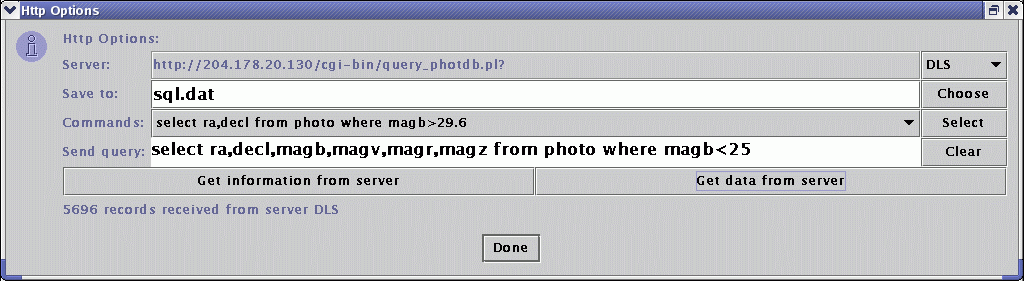
left. Choose Console->New Dataset via HTTP. On the first line (Server),
choose DLS from the menu at right. Click on "Get information from
server" to see if all the plumbing is working.
You should see this:
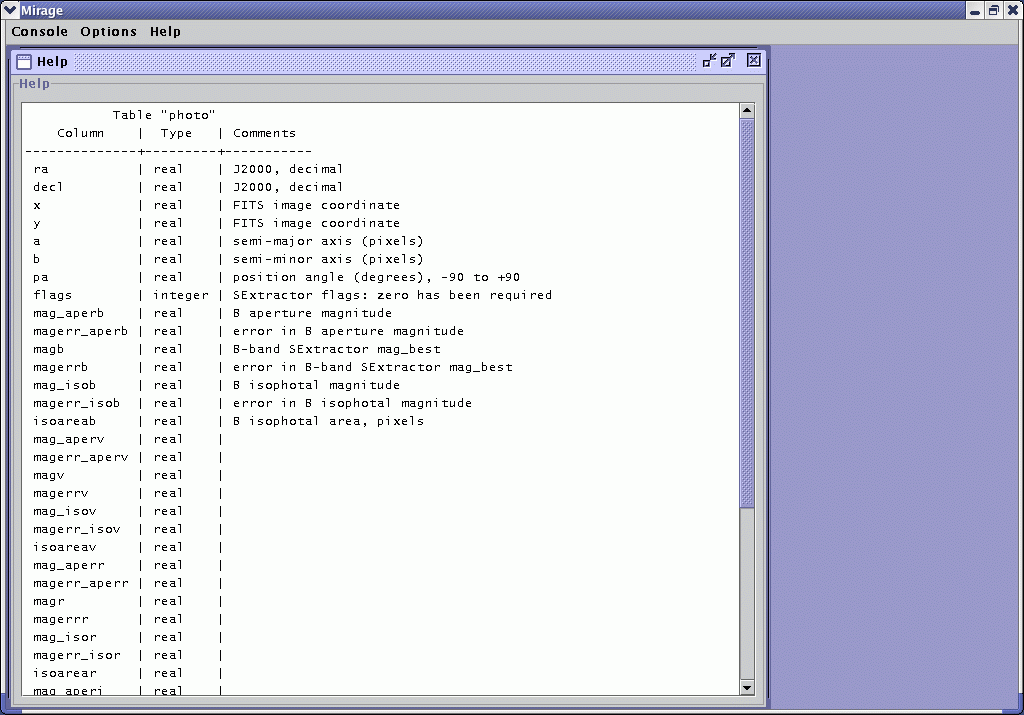
(Click on low-resolution images to see them at full resolution.) Some types of firewalls may prevent the outgoing connection. If you need to use an HTTP proxy in everyday browsing, this means you. - Now enter a real query in the "Send query" box. Try
SELECT ra,decl,magb,magv,magr,magz FROM photo WHERE (magb < 25)
as shown in this screenshot:
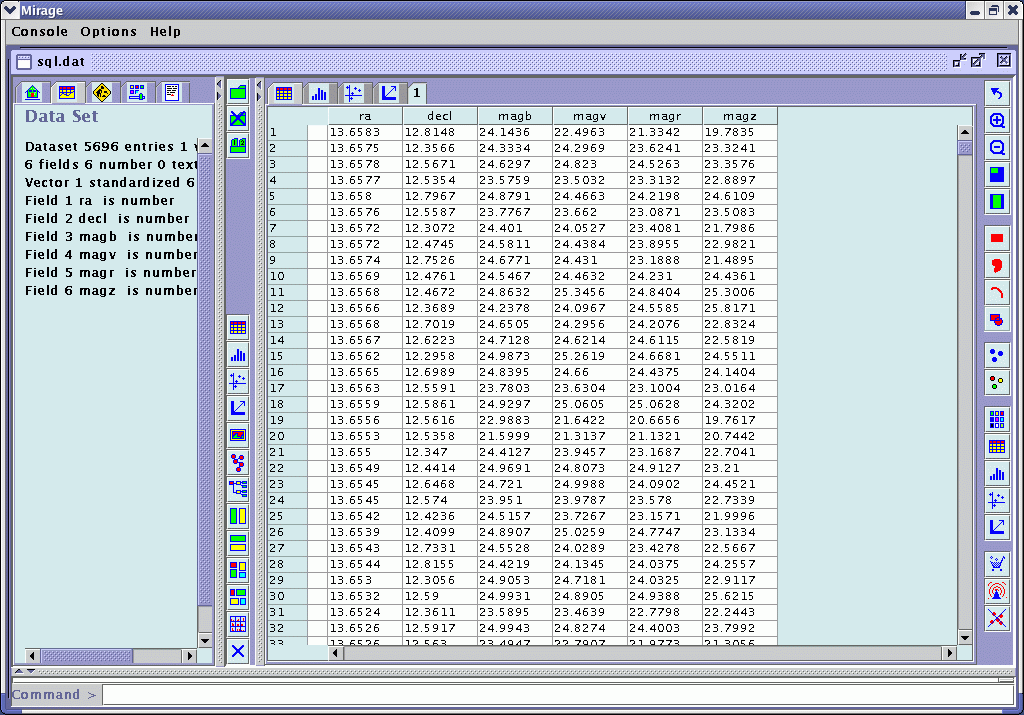
- Now click on "Get data from server". After a brief pause you should
see this in the main window:
You can now quit the HTTP Options popup.


Using Mirage to examine the data
- What you just saw was the table view, which is fairly boring if
you have a large dataset. Using the tabs at top center, you can
switch between table, histogram, scatterplot, and feature vector
views. Try it.
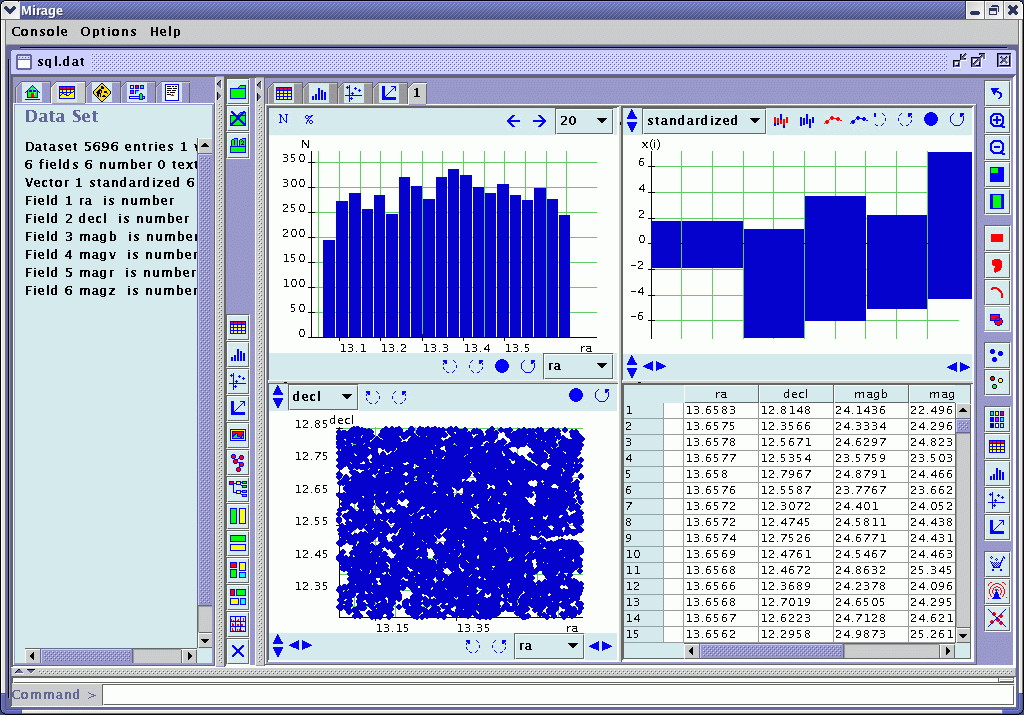
- But the best view is multiple simultaneous views. Click on the
tab labeled "1" and you get all four at once:
You can create more tabs as you like, with arbitrary configurations of multiple plots, by using the buttons running down the left side of the view. - Because RA and DECL are the first two columns of the table, the
histogram defaults to a histogram of number versus RA, and the scatter
plot defaults to DECL versus RA. The histogram is not very
interesting, so make it refer to some more interesting quantity. In
the histogram plot, pull down the menu labeled "ra" and change it to
"magr". Now you see number versus R magnitude, which really tells you
something about the data. (But remember, we asked for magb<25 in our SQL
query, so we are not seeing the true incompleteness.)
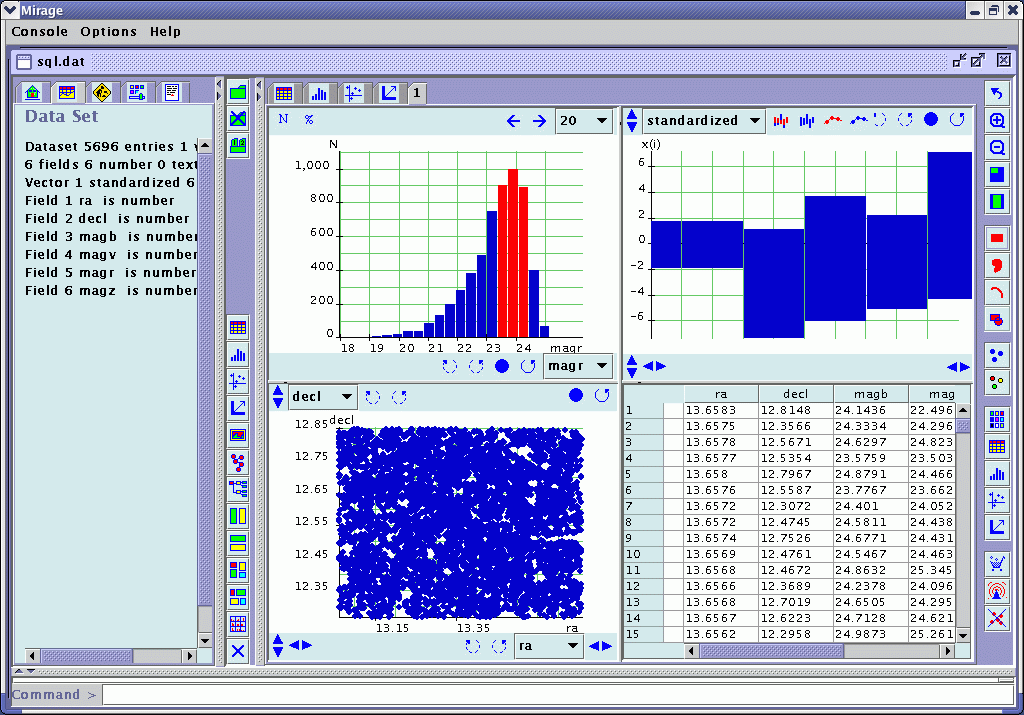
- Now try the broadcast feature. First highlight a subset of the
data by clicking on the red rectangle icon at right, then highlighting some
section of the histogram:
Now click on the broadcast icon at lower right: , and after a few seconds, the other plots
will show your selection:
, and after a few seconds, the other plots
will show your selection:
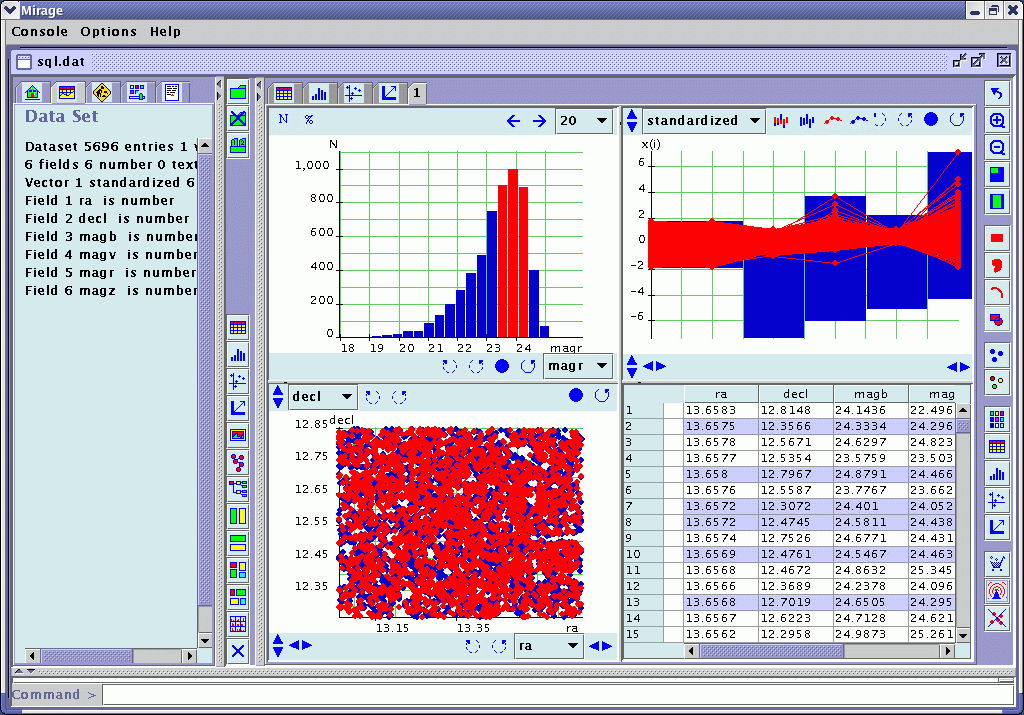
- What does this tell us? First, looking at the scatterplot, you
can see that this magnitude slice is uniformly distributed in RA and
DECL, which is good (the holes are due to very bright stars). Second,
the table view doesn't tell you much, but it might if the data subset
were smaller and you wanted to browse through all the items. Third,
the feature vector plot (upper right) requires some more explanation.
- In the feature vector plot, click on this button:
 (the tool tip says "show values of all feature
vectors"). Then the plot will look like this:
(the tool tip says "show values of all feature
vectors"). Then the plot will look like this:
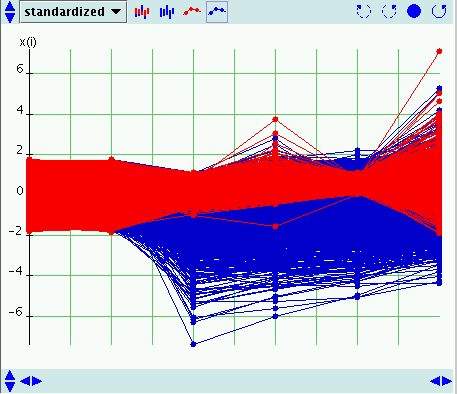
This is a true feature vector plot rather than just the range of the data. Each object is plotted by a set of dots representing its ra,decl,magb,magv,magr, and magz from left to right, and the dots are connected by line segments. (The actual values are unfamiliar because the units have been standardized. Also, the dots and line segments can get so numerous as to form a solid area.)So the second-from-right column is R magnitude, and you can see that our selection is a very narrow range of R magnitude, simply because that's how we defined our selection in the histogram plot. What's new is that you can see that this narrow slice of R corresponds to a large range of z and V magnitudes, a not-so-large range of B, and the full range of ra and decl represented in the catalog. In addition to just the ranges, you can see by the density of points that MOST of the this narrow slice of R corresponds to a narrow slice of V, but there are a few outliers, whereas in z there is somewhat more of a scatter.
If this selection in R truly corresponded to a narrow range of B, this would be new astrophysics, but remember that we selected for magb<25 in our SQL query, so this is an artifact. But it illustrates how to use the feature vector plot to investigate trends in the data.


What if I don't want to do an SQL query? I just want a big local file with all the data.
- Download and gunzip a DLS catalog, say F1p22.cat (your browser
may do the gunzipping for you).
- Get the format file corresponding to your catalog: F1p22.fmt or F4p22.fmt or
Release2.fmt. A format file simply tells
Mirage about the structure of the catalog.
- In Mirage, choose Console->New Dataset with Options. You get a
more sophisticated Load popup now:
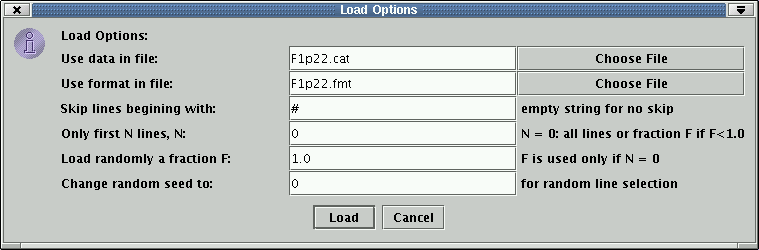
Fill in F1p22.cat and F1p22.fmt on the first two lines (this has already been done in the image above), and click Load. - After a loading progress bar is done, you get a table view much
like the table view shown under "Getting DLS data", and now you can
skip to "Using Mirage to examine the data".

Does Mirage work with images?
Yes. Drag this symbol (you can find it
along the left-hand side of the canvas) onto any plot, and you will
see this popup:
(you can find it
along the left-hand side of the canvas) onto any plot, and you will
see this popup: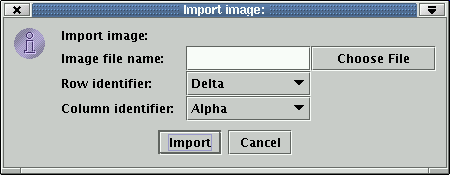
Give it a name such as F1p22BVR.jpg, and click on import (we'll get to the row/col identifiers later). Then you'll see the color image in the area previously occupied by the plot. You can use these buttons found on the top right to manipulate it:
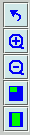 .
From top to bottom, they pan the image as you drag it with the mouse;
zoom in; zoom out; realign the image with the top left corner; and fit
the image to the window. To do any of these, you first click on the
button and then click on the image window.
.
From top to bottom, they pan the image as you drag it with the mouse;
zoom in; zoom out; realign the image with the top left corner; and fit
the image to the window. To do any of these, you first click on the
button and then click on the image window.
If you move the cursor onto the image and leave it for a second, the
x,y coordinates of that point on the JPEG pop up. Note that
the display convention is to put the origin at upper left. x,y on the
JPEG is not the same x,y coordinates found in the catalog, because of
this convention and because the
JPEGs have been binned to make them a managable size. If you wish to
make overlays, you must first replace the x and y columns in the
catalog with x/2 and (8192-y)/2. Then in the Load Image popup, make
sure to enter Y for row identifier and X for column identifier (this
is tricky because "row identifier" appears first and habit is to put x
first). Then when selections are broadcast, overlays will appear as
yellow circles on the JPEG:

We are working on a way to associate RA and DEC with a JPEG, so that
these coordinate system problems will disappear.
The author of Mirage is Tin Ho. You can find her contact info and lots more Mirage documentation at the Mirage home page.
Last updated April 11, 2003.