
Logging in
The contest packet containing the task statements will also contain a piece of paper listing your user ID and password and the URL of the grading server. The user ID is something like "USAC1" and is also printed on your name tag.
Using the instructions above, start a web browser and enter the contest server URL. You will be shown a form prompting for your user name and password, like this one:
Type in your user ID and password and click "Log In".
Now you're at the main contest page, which looks like:
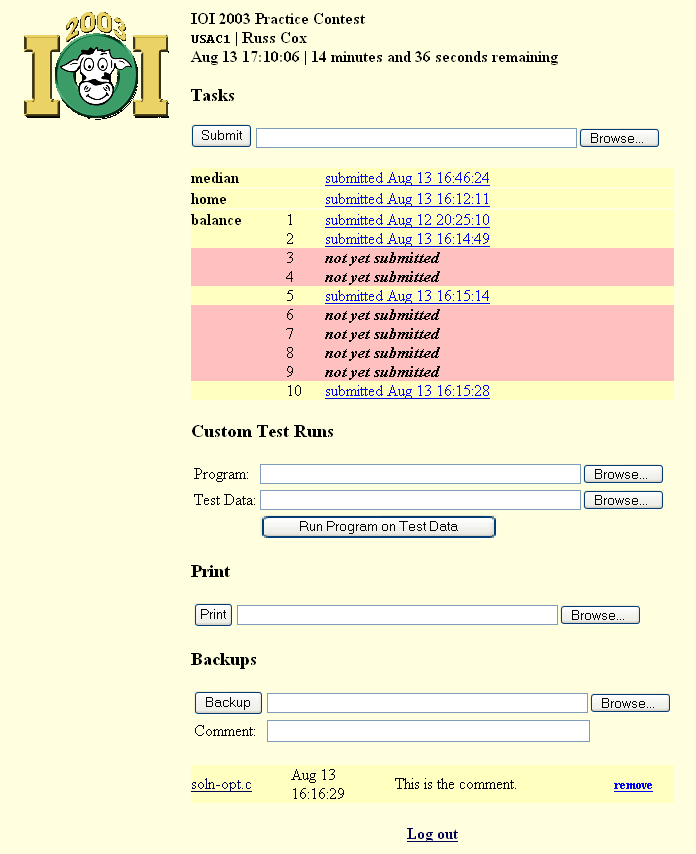
You use this page to submit task solutions, submit programs and test data for custom runs, print programs, back up your files, and view your backups.
Programming task submission
To submit a solution for a programming task, you must put a header at the top of your source file, so the grading system can determine the task being solved and the programming language being used. The headers are:
| for C | for C++ | for Pascal | ||
/* TASK: task-name LANG: C */ | /* TASK: task-name LANG: C++ */ | (* TASK: task-name LANG: Pascal *) |
Once you have added this header, you can submit the source file. Click "Browse". A file selection dialog box will pop up. Select your source file, click OK to close the dialog box, and then click "Submit".
A new web page will load, showing you status as your submission is processed. The output for a successful upload is:
| You uploaded a C program for "median". | The server has found the task and language header and is echoing them back to you as confirmation. |
| Compiling... | The server is about to compile your program. |
| Compile successful. | The program compiled without errors. If the compiler generated any warnings, they will be displayed. |
| Running submission test cases... | The server is about to run your program on the submission cases. |
| All tests passed. | Your program is correct for the submission cases. If your program fails a case, the server will display the case input, the correct output, and your program's output. |
| Your program is saved for grading. | Since all tests were passed, the program has been stored and will be graded. |
If the submission succeeds, the submitted program replaces any previous submissions for that task.
If the submission fails (the program is missing a task or language header, does not compile, or does not produce the correct answer for the submission cases), the submitted program is discarded. The previous submission, if any, is kept.
The bottom of the submission web page will have a link named "Return to contest" that loads an updated main contest page.
File task submission
For some tasks, you will upload solution (output) files instead of submitting a program to solve the task. These solution files begin with a single line header that says
The task descriptions for file tasks will give complete examples of the output files.
File task solutions are uploaded using the same submit box you use for programs, and the submission status page is similar.
Submission summary
The main page displays a submission summary table under the solution submission box. The left column lists the tasks for the contest. The right column says either:
| not yet submitted | You have not successfully submitted a solution for this task. |
| submitted Aug 13 16:12:11 | Your most recent successful submission for this task was at the given time. This text is a hyperlink: clicking on it will show the submitted solution. |
For file tasks, the summary lists a table line for each test case. (See the table lines for "balance" in the picture above.)
Custom Test Runs
You can use the "Custom Test Runs" section of the contest page to check how well your program runs when the server is enforcing the time and memory limits.
Use the file selection dialogs to select a source file and a test data input file and then click "Run Program on Test Data". The source file must have a task and language header as described earlier for task submissions. The server will compile the source file and run the resulting executable using the time and memory limits for the task. It will save the given input file as "taskname.in" before running the executable.
Once the executable has finished, the server will display:
The bottom of the page has a "Return to contest" link back to the main contest page.
Printing
The "Print" section of the main page has a file dialog box just like submission and the test runs. To print a text file, use "Browse" to select it and then click "Print". You will be shown a web page confirming that the print was successful. The bottom of the page has a "Return to contest" link back to the main contest page. Your printout will be brought to you in a few minutes.
Backing Up Your Files
The server will store up to 100 files (each at most 1MB) as backups for you. If your computer stops working during the contest, you will be moved to another computer with none of your files on it. You can then download your backups from the server to start work on this new computer. The backups are also useful if you accidentally delete something from your computer.
Each time you submit a program or file task solution, it is automatically backed up. To explicitly back up a file, use the file selection box under "Backups" to select the file to back up. You may also enter a comment in the "Comment" field. Then click "Backup".
A new web page will confirm your backup. The bottom of the page has a "Return to contest" link back to the main contest page.
Backup Summary
Under the backup submission form, the server lists all your backed-up files in a table. Each backed-up file is listed as a table row, with the following column entries: file name used in the backup, date of backup, comment (if any), and a "remove" link that removes that file from the server.
To download a backed-up file, click on its file name in the list.
The example screenshot shows one backed-up file, named soln-opt.c, submitted on Aug 13 at 16:16:29 with a comment of "This is the comment."
Log out
The "Log out" link logs you out of the contest server.
Grading Environment
Compilation command lines
In case you want to use exactly the server's compilation command, the server uses the following command lines to compile your programs:
| C | gcc -pipe -O2 -o task task.c -lm extimec.o | |
| C++ | g++ -pipe -include /usr/include/stdlib.h
-O2 -o task task.cc -lm extimecc.o | |
| Pascal | ppc386 -So -O1 -XS -otask -kextimepas.o task.p |
Exectime
As can be seen from the compilation command lines, the grading server links your program with an extra object file. This object file provides a function exectime that you can call to discover how long your program has been running. The function declarations necessary to use them are:
| C | int exectime(void); | |
| C++ | int exectime(); | |
| Pascal | include extime.inc; |
In all cases, exectime returns the number of milliseconds that the program has used. XXX I don't know if these are available on Windows XXX. XXX Should we provide these to the contestants on Linux? XXX.
Exit code
Your program must exit with exit code 0. In Pascal, this is the default: no special steps are necessary. To exit with code 0 from C or C++, return 0; from inside main, or call exit(0); to exit the program. Note that to use exit you must #include <stdlib.h&rt;.
Integer Sizes
The grading system and your computers are running 32-bit compilers. This means that the default size of an integer variable (C's or C++'s int or Pascal's XXX) is 32 bits (rather than MS-DOS's default of 16).
C, C++, and Pascal all provide 64-bit integers. In C and C++, the 64-bit integer is called long long. In Pascal, it is XXX.
Random Seeding
Your programs are not allowed to be non-deterministic: they must produce the same output each time they are run on a particular input. If you want to use a pseudo-random number generator, you can get deterministic behavior by seeding it with a fixed value. For example, in C and C++ you can use srand(0); and then call rand to get a (fixed) sequence of random values. In Pascal, you can call XXX and then use XXX to get a (fixed) sequence of random values.
C++ Name Spaces
The C++ we are using differs slightly from the C++ used by the Borland compilers. In particular, you will need to write
#includeusing namespace std;
in order to use the standard input/output streams cin and cout. (The Borland compilers did not require using namespace std;.)