 |
 |
|
|

|
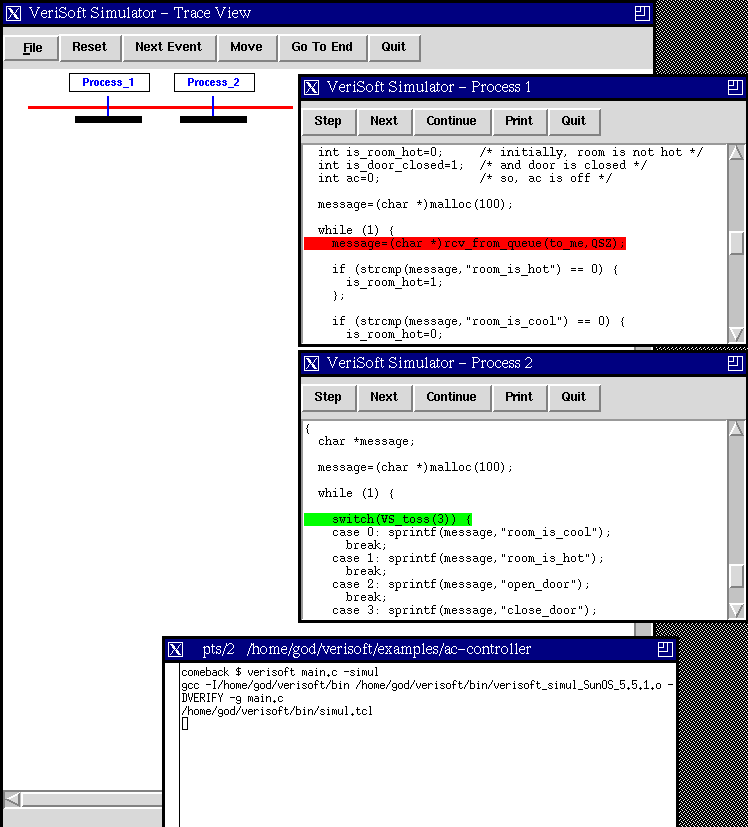
The "Trace View" on the left shows the current "trace" (scenario) executed from the initial state of the system. This view only displays operations that are visible according to the VeriSoft terminology. Visible operations include the operations "VS_toss", "VS_assert" and operations on communication objects such as "send_to_queue" and "rcv_from_queue". Initially, no visible operations are displayed since no such operations have been executed. For each process in the system, a separate window is created. Each "Process View" shows the current state of the corresponding process. A process whose next instruction is colored in red is currently blocked. Pressing the button "Step" or "Next" in a Process View window executes the next line, stepping into or over function calls respectively. Pressing ``Continue'' resumes the execution of the process until the next visible operation is reached. After selecting a variable name with the mouse, pressing the button "Print" creates a new window where the value of the selected variable is printed. The buttons "Reset", "Next Event", "Move" and "Go To End" of the Trace View can be used to drive the system in any of the intermediate states reached during the execution of the scenario displayed in the Trace View. The "File" menu enables you to save and load scenarios. If you press the "Continue" button of Process 2, a little window pops up.
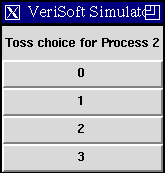
This window prompts you to select one of the four possible choices for the nonderministic operation "VS_toss(3)" in Process 2. Indeed, in manual simulation mode, VeriSoft lets you drive the execution of the whole system yourself, "manually". After pressing a few other buttons, here is what you may see.
|
|
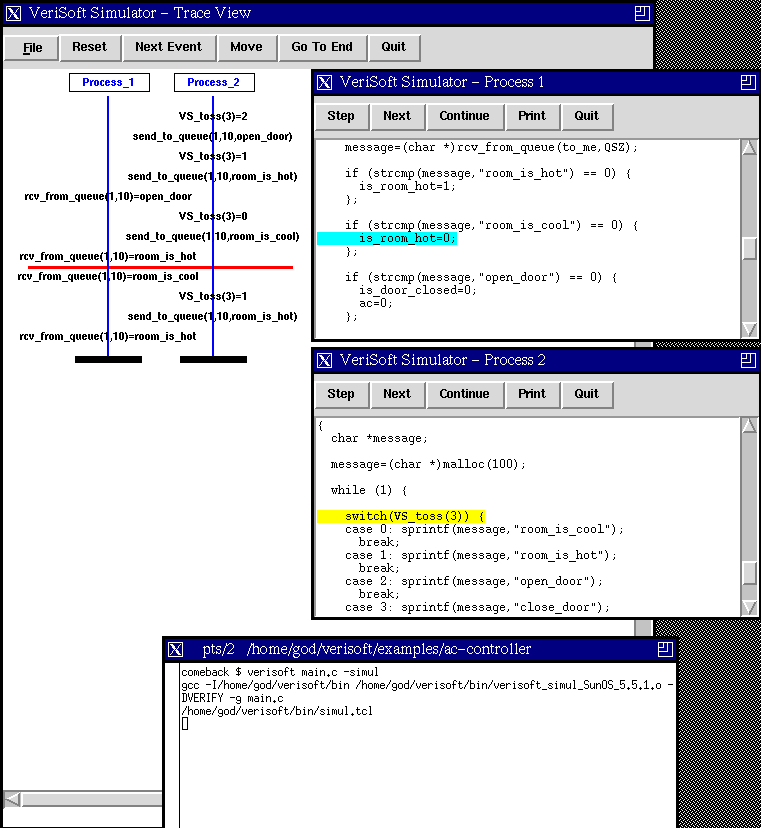
The next instruction of Process 1 is colored in blue because Process 1 is the next process to be scheduled according to the scenario being played. The red horizontal bar in the Trace View indicates the current position in the scenario. The next instruction of Process 2 is colored in yellow since another process (Process 1) is currently about to execute a non-visible operation.
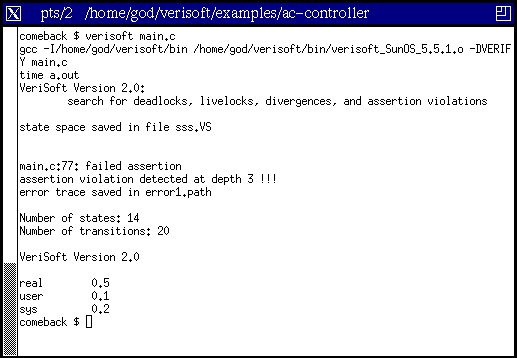
Step 4. Running VeriSoft in automatic simulation mode. It is time to challenge the correctness of your code using VeriSoft in automatic simulation mode. In this mode, VeriSoft systematically explores all the possible executions of the system. The superposition of all these executions can be represented by a graph called the "state space" of the system. Nodes in the graph correspond to states of the whole system, while edges correspond to transitions from states to states. In practice, the state space of a software application is usually huge, and VeriSoft cannot explore it exhaustively. However, VeriSoft can easily explore hundreds of thousands scenarios in a reasonable amount of time (in one night, for instance), and examine millions of states and transitions completely automatically. VeriSoft can also always guarantee a complete coverage of the state space up to some depth, where the depth of a path in the state space is the number of visible operations executed during the corresponding scenario. In other words, all the possible executions of the system up to that depth are guaranteed to be covered. More information on the state-space exploration techniques used by VeriSoft can be found in [Documentation]. Press the "Quit" button in any of the windows to quit the VeriSoft simulator. Then, run VeriSoft in automatic simulation mode by typing: verisoft main.c After a few seconds, VeriSoft prints the following diagnosis and stops.
By default, VeriSoft systematically searches the state space of an application for deadlocks, livelocks, divergences, and assertion violations.
In the case of our air-conditioning controller program, VeriSoft immediately found a scenario leading to an assertion violation. This "error trace" is saved in a file named "error1.path". Several options are available for searching for a specific type of errors, for controlling the search strategy, for starting a search from a specific initial state, etc. See the VeriSoft Reference Manual for details.
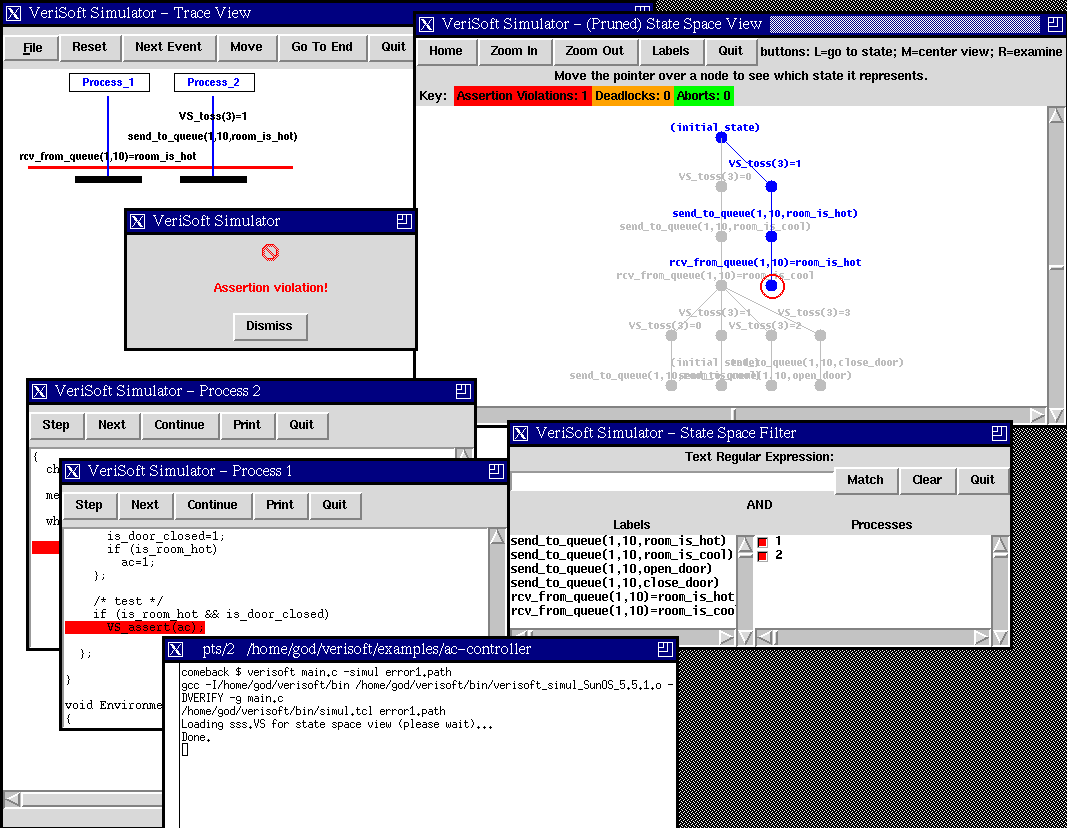
Step 5. Running VeriSoft in guided simulation mode. Let us now examine the scenario generated by VeriSoft that led to an assertion violation. This scenario can be replayed using VeriSoft in guided simulation mode by typing: verisoft main.c -simul error1.path Several windows appear on your screen. The "(Pruned) State-Space View"
(on the right below) shows the state space that has been explored in systematic
state-space exploration mode (saved in the file "sss.VS"). After zooming
in, centering the view, pressing the button "Labels" to view labels of
transitions, and clicking with the left button on the state circled in
red (i.e., the assertion violation), you obtain the view shown in the following
screenshot.
|
|
The "State-Space Filter" window can be used to filter information displayed in the State-Space View, for instance by highlighting all the transitions executed by a specific process or corresponding to a specific visible operation. Using all the linked views of the VeriSoft simulator, you can now replay (instruction per instruction if necessary) the scenario leading to the assertion violation, examine the state of the processes, navigate through the state space, explore alternative scenarios, etc., in order to discover the precise dynamic behavior of the application. Advanced remark. In order to speed up the search, VeriSoft uses "smart" state-space search algorithms for dynamically pruning the state space in a completely reliable way: pruned parts of the state space are guaranteed not to contain any errors of the types discussed above. These parts are not displayed in the "(Pruned) State-Space View". The search algorithms used in VeriSoft are discussed in the [Documentation].
As an exercise, [Download] the VeriSoft package, install it, execute Steps 3 to 5 above by running VeriSoft on main.c in the directory verisoft/examples/ac-controller. Then, fix the code of the procedure AC_controller(), and run VeriSoft in automatic simulation mode to test whether your solution is correct. (A solution is given in the file main2.c in the same directory.) |